What to prepare
Each room needs just a laptop and a small USB audio interface connected to the venue mixer; in a room with no mixer, speakers wear wireless lavalier mics, or a USB mic sits on the table, plugged straight into the laptop. Interpretation runs in the cloud, and attendees scan a QR code on their phones to listen and read live captions in their browser — no app required.
What you need to prepare
What we provide
How each room takes in sound: one of three
If the room’s microphones go into a venue mixer run by the venue’s AV team (a ballroom, an auditorium, a meeting room with a sound system), choose the venue mixer; for a quiet room with no sound system, choose speakers wearing mics or a phone; for a session held entirely on Zoom, Google Meet or Teams, choose an online meeting. Rooms in the same event can differ.
After ordering, choose for each room on your event page first, then buy what that choice needs, ideally a week ahead.
Not sure? Ask the venue two things: do this room’s microphones go into a mixer, and can the mixer give us one line-level output? If both are yes, use the mixer.
The ways in, best first
- The venue mixer: a MOTU M2 audio interface into a laptop (Mac or Windows). The steadiest, clearest sound; stage and audience-question mics all come in, and speakers wear nothing extra
- No mixer: speakers wear wireless lavalier mics such as a DJI Mic 3, or a USB mic such as a Shure MV88+ sits on the table, plugged into a laptop
- No laptop: a phone within half a metre of the speaker, listening with its own microphone. An iPhone in Safari has tested steady, and keeps listening with the screen locked or another app in front; Android phones differ a lot from model to model, so precheck with that very phone before the event, and don’t lock it while it sends
- No laptop and the speakers move about: an iPhone or iPad with a wireless lavalier, in our app 365UI Interpretation Audio. The receiver plugs into the phone; if it comes out, the app sends silence and says so rather than using the phone’s own microphone
- Not recommended: a mic plugged into a phone and used through a browser. On an iPhone, browsers (including Safari) record the phone’s own microphone instead, and the audio page refuses it; Android takes a while to find the mic, and the page cannot tell if it is unplugged
Equipment for a room on the venue mixer is about $215–$226; for a room with no mixer, mics instead are about $219–$259 (a wireless lavalier kit or one desk USB mic, either one; amazon.com prices on 2026-10-21). Bought once and reusable at later events. Check stock and delivery on the listings before ordering; in Canada, amazon.ca or Long & McQuade carry the same models.
To buy for a room on “The venue mixer”
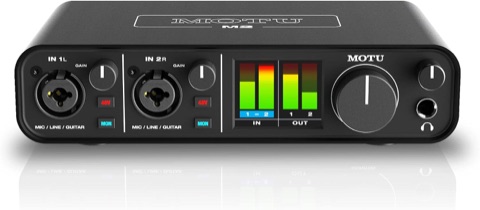 MOTU M2 USB audio interfaceAbout $199.95
One per room. Works on a Mac as soon as it is plugged in; no driver to install.
amazon.com/dp/B0812B26TN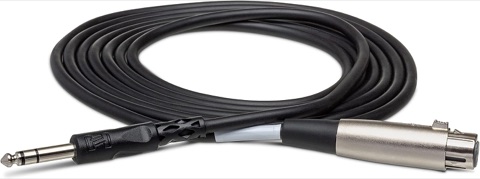 Hosa STX-110F cable (10 ft)About $15.46
One per room: one end to the mixer’s XLR male line output, the other into the interface. If that output is 1/4" TRS, buy a balanced TRS male-to-male cable instead.
amazon.com/dp/B000068NYU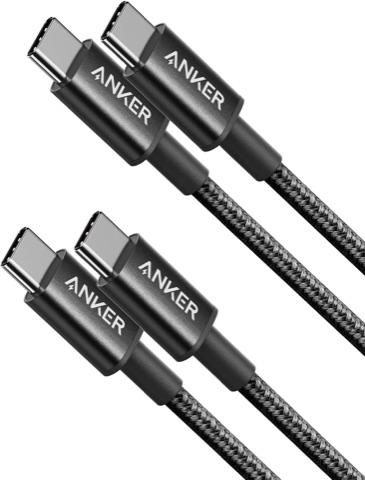 Anker USB-C to USB-C cable (2-pack)About $9.99
The M2 comes with a USB-C to USB-A cable only. If the laptop has only USB-C ports (every recent MacBook), use this instead of an adapter; one pack covers two rooms. Not needed if the laptop has a USB-A port.
amazon.com/dp/B088NMR44C
For a room on “Speakers wear mics, or a phone listens (no mixer)”: one of these two mics
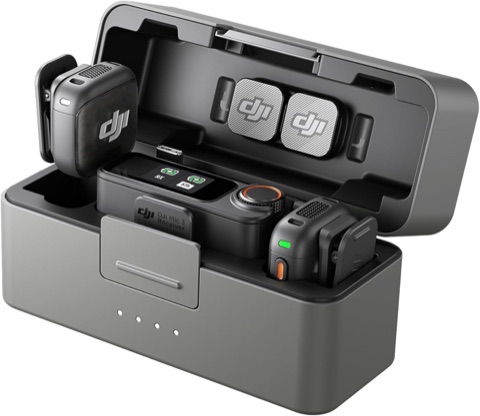 DJI Mic 3 wireless lavalier mics (two transmitters, one receiver)About $259
Either this or the USB mic below, one per room; choose it when speakers stand or move around, or there are more than two. Speakers clip a transmitter to their collar; the receiver goes straight into the laptop with the USB-C cable in the box, set to mono (M mode). For more than two speakers, add transmitters: up to 4 per receiver.
amazon.com/dp/B0F995J8FR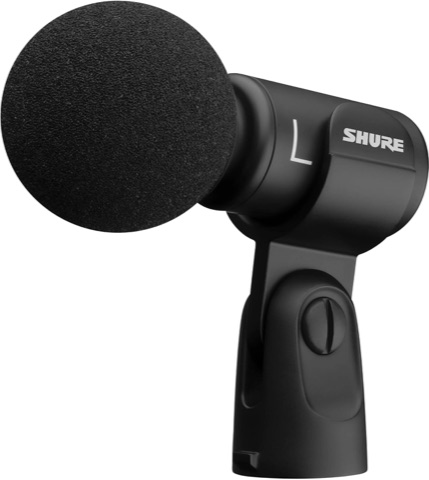 Shure MV88+ USB microphone (on the table)About $219
Either this or the lavalier mics above, one per room; it suits one or two speakers seated at a table, each within arm’s length of it. It plugs straight into the laptop with the USB-C cable in the box (10 ft). The box has a mic clip but no stand: to stand it on the table, add a desktop mic stand (5/8" thread).
amazon.com/dp/B09BZXP8Y1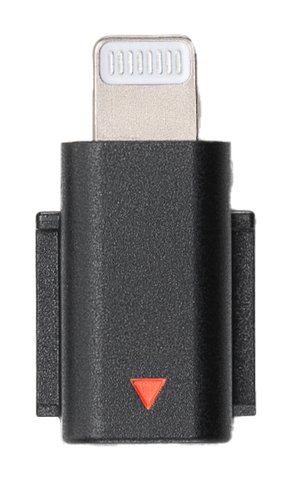 DJI Mic 3 Mobile Phone Adapter (Lightning)About $19
Needed only when the receiver plugs into an iPhone or iPad with a Lightning port and our app 365UI Interpretation Audio sends the sound, one per room; an iPhone or iPad with USB-C, or a laptop, does not need it. It fits the DJI Mic 3 only; for another mic, buy its own maker’s Lightning adapter.
amazon.com/dp/B0F98TG92R
Preparation timeline (counted back from event day)
- 1Place your order and pay, any time before the event starts; the attendee QR signs and the access code are on your event page right away. Buy the equipment earlysee the next step
- 2Right after orderingchoose on your event page how each room takes in sound (the venue mixer or mics the speakers wear), then buy what that needs, ideally a week ahead; choose at the latest 7 days before
- 35 days beforeconfirm the equipment has arrived; for rooms on the mixer, the venue AV picks the answers to a few connection questions on the AV link
- 44 days beforegive the email addresses for system alerts and your recording retention choice; have one on-site helper for each room running at the same time
- 52 days beforeenter the speaker list and glossary (if session times changed, change them on your event page); at the venue, run a soundcheck of about ten minutes by opening the room’s audio link from your event page, on the event laptops and audio interfaces (or mics)
- 6If you order after one of these steps, do it as soon as you can after ordering; finish the questions at least 2 hours before the event starts, when the rooms read them
- 7On the daythe helper opens the room’s audio link within an hour before the session, and it stays connected through to the start; each room opens by itself 30 minutes before each session and closes 15 minutes after it; if a session runs over by more, extend it under “Extend on the day” on your event page
What the venue AV team provides
After you order, each room you set to the venue mixer on your event page gets its own AV link to forward to the venue’s AV team; rooms set to speakers wearing mics need no AV.
Pricing
From $100 per room-hour with translated voice ($25 captions only), with 2 listening languages and 100 listeners at once.
See pricing and price your eventCancellation and refunds
Cancel at least 14 days before the event starts for a full refund; at least 7 but fewer than 14 days, half; fewer than 7 days, no refund.
Where the audio and text go
During the event the room audio passes through Alibaba Cloud (Singapore, primary interpretation), OpenAI (United States, backup), LiveKit (audio delivery; for rooms with voice and a listener limit of 900 or more, our own servers deliver it) and our servers; when the helper chooses to send captions into a Zoom, Teams or Webex meeting, that room’s captions in one language go to that meeting too. Audio and transcripts are kept 30 days by default: during that time you can download each language’s transcript and the venue recordings from your event page; then they are deleted; you can also choose to keep the transcripts (free; the venue recordings are still deleted after 30 days), or not to keep anything. Before the event starts, you tell speakers and attendees at the venue, using the notice text on your event page.
AI assistant
Hi, I’m the 365UI AI assistant. I answer from our interpretation site, its guides and our company site, 365ui.com, and you can ask follow-ups. Try:
I do not answer questions about anything else, and I cannot look up an order or an event; for those, write to support@365ui.com.
We keep conversations for 90 days to improve the answers, without your IP address; see the privacy notice.